Printer Drivers For Your Device
Select Your Printer Brand




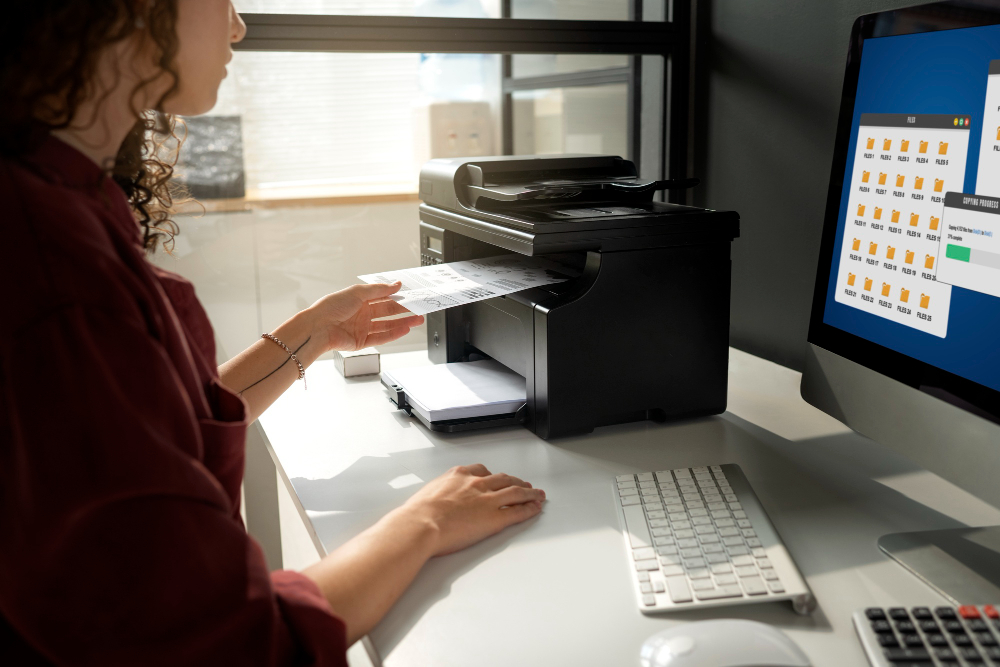
Printer Not Connecting to Wi-Fi
Printer Goes Offline Frequently
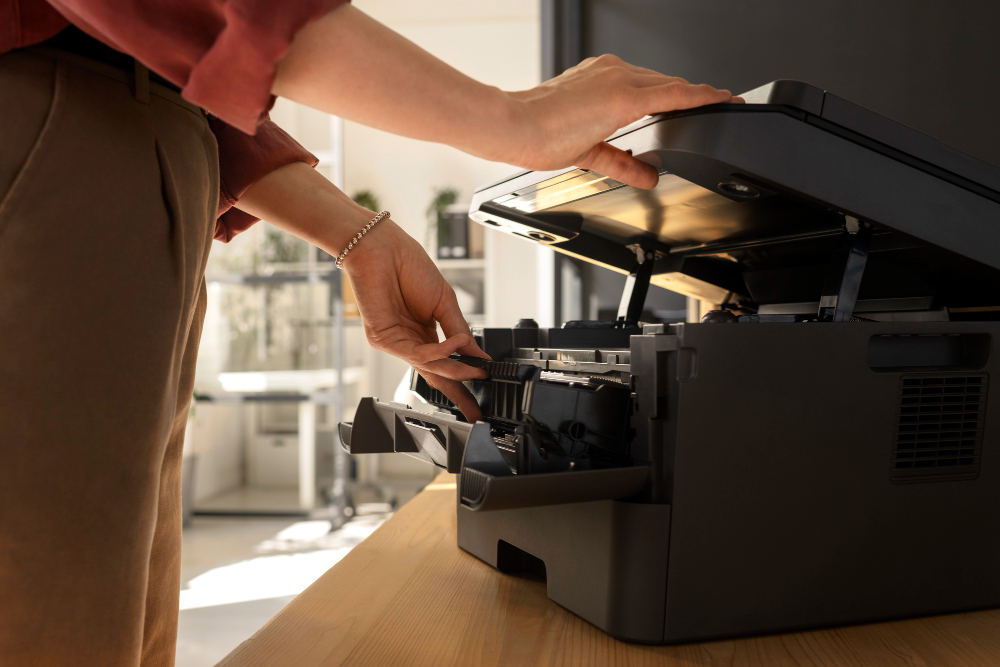
Paper Jam Error
Driver Compatibility Issue
Driver Installation Failed
Step-by-step troubleshooting guide when a printer is not printing
1. Check Basic Power & Status
* Make sure the printer is ON
* No blinking red/orange lights or error messages
* Paper loaded properly
* Ink / toner not empty
2. Check Printer Connection
For USB Printers
* Reconnect USB cable firmly
* Try a different USB port or cable
For Wi-Fi Printers
* Printer connected to the same Wi-Fi network as your computer/mobile
* Restart:
* Printer
* Router
* Computer / phone
3. Set Printer as Default
Windows
1. Control Panel → Devices & Printers
2. Right-click your printer
3. Select Set as Default Printer
Mac
1. System Settings → Printers & Scanners
2. Select your printer
3. Make sure it’s not paused or offline
4. Check Print Queue
* Cancel all pending or stuck print jobs
* Restart the printer after clearing queue
Windows
* Open printer → See what’s printing → Cancel All
Mac
* Printers & Scanners → Open Print Queue → Clear jobs
5. Check “Offline” or “Paused” Status
Windows
* Right-click printer → See what’s printing
* Uncheck:
*Use Printer Offline*
*Pause Printing*
6. Print a Test Page
* Print directly from printer menu or system settings
* If test page prints → issue is software/app related
* If test page does not print → hardware or connection issue
7. Check Ink / Toner & Cartridges
* Remove and reseat cartridges
* Remove protective tape (new cartridges)
* Replace empty or faulty cartridges
* Run printhead cleaning (inkjet printers)
8. Update or Reinstall Printer Driver
* Download latest driver from manufacturer website
* Uninstall old driver if needed
* Reinstall and restart system
9. Check Paper Jam or Internal Error
* Open all covers
* Remove jammed or torn paper
* Close covers securely
10. Try Another Device or File
* Print from another app or device
* Try a simple document (PDF or text file)
11. Factory Reset (Last Option)
* Reset printer network/settings
* Reconnect to Wi-Fi and reinstall printer
Common Causes Summary
| Issue | Fix |
| ————— | —————————- |
| Printer offline | Restart & set as default |
| Wi-Fi issue | Reconnect to correct network |
| Driver issue | Reinstall driver |
| Ink issue | Reseat / replace cartridge |
| Stuck queue | Clear print jobs |
step-by-step troubleshooting guide for a “Printer Driver Failed” issue (Windows & Mac).
1. Restart Everything (Quick Fix)
* Restart computer
* Restart printer
* Restart router (for Wi-Fi printers)
This often clears driver communication errors.
2. Check Printer Status
* Make sure printer is ON and shows Ready
* No error lights or messages
* Printer connected via USB or Wi-Fi (same network)
3. Remove the Failed Driver Completely
Windows
1. Control Panel → Devices & Printers
2. Right-click printer → Remove device
3. Press Win + R → type `printui /s /t2`
4. Under Drivers tab, remove your printer driver
5. Restart computer
Mac
1. System Settings → Printers & Scanners
2. Remove the printer
3. Right-click printer list → Reset printing system
4. Restart Mac
—
4. Download the Correct Driver (Very Important)
* Go to manufacturer’s official website
* Select:
* Exact printer model
* Correct OS version (Windows 10/11, macOS version)
* Download **Full Feature / Recommended driver**
* Avoid Windows generic drivers if possible
5. Install Driver Properly
* Right-click installer → Run as Administrator (Windows)
* Do not connect USB cable until installer asks
* For Wi-Fi setup, keep printer powered ON
6. Check Print Spooler Service (Windows Only)
1. Press Win + R → type `services.msc`
2. Find **Print Spooler**
3. Set:
* Startup type: Automatic
* Service status: Running
4. Restart the service
7. Update Operating System
* Pending OS updates can cause driver failure
* Install updates and restart system
8. Disable Antivirus Temporarily (If Needed)
* Some antivirus software blocks driver installation
* Disable briefly during install, then re-enable
9. Try Alternative Driver (If Still Failing)
* Install Universal Printer Driver (UPD) from manufacturer
* Or try **Add Printer → Windows Update driver
10. Check Error Code or Message
Common messages:
* Driver unavailable
* Driver is unavailable
* Driver installation failed
* Cannot install printer driver
Each may need a slightly different fix.
When to Escalate
* Driver fails on multiple computers
* Printer not detected during install
* Error code persists after reinstall
➡️ Possible hardware, USB cable, or OS corruption issue.